
You have and email address and want to add it to Microsoft Outlook. You can also add multiple email addresses which you can easily view and manage in your Outlook application and profile. Follow the steps below to add an email address to you Microsoft Outlook application using the POP3 settings. Note, the benefit of setting up a POP3 connection to your email is your emails in your mailbox will download to your outlook data file on your pc or laptop and you can backup the outlook data file with all your emails if needed. IMAP does not download and if you close your account or change your hosting provider, you will loose or not have access to all your emails.
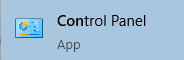
Launch Control Panel - Click Start and search ot type Control Panel
Change your view in the control panel to Small icons

Click Mail

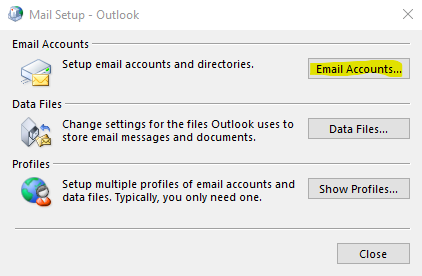
The Mail Setup box will show up, click on the Email Accounts button
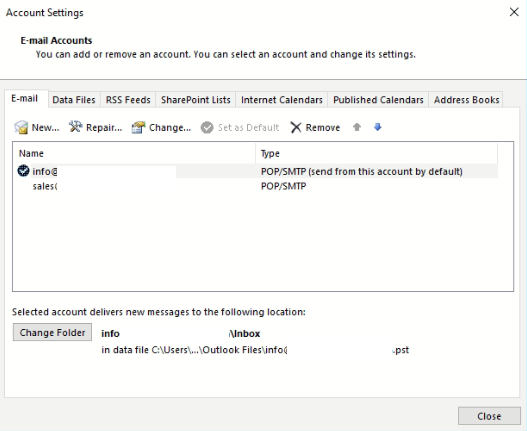
If you have an existing email address or outlook profile, then you will see the Account Settings box. Click on New
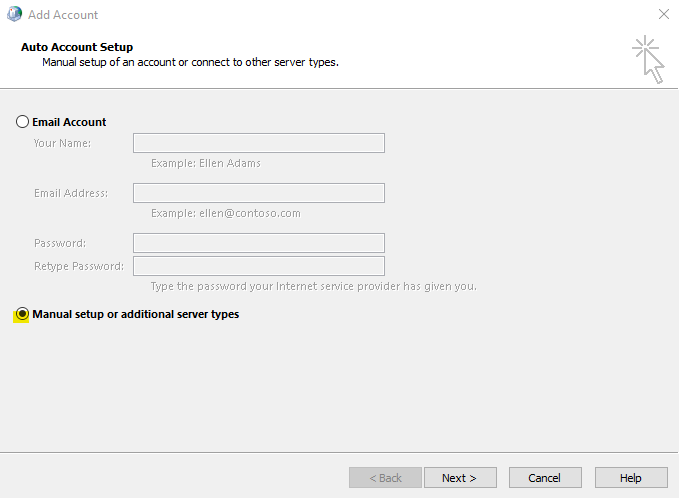
Select Manual setup or additional server types option and click Next
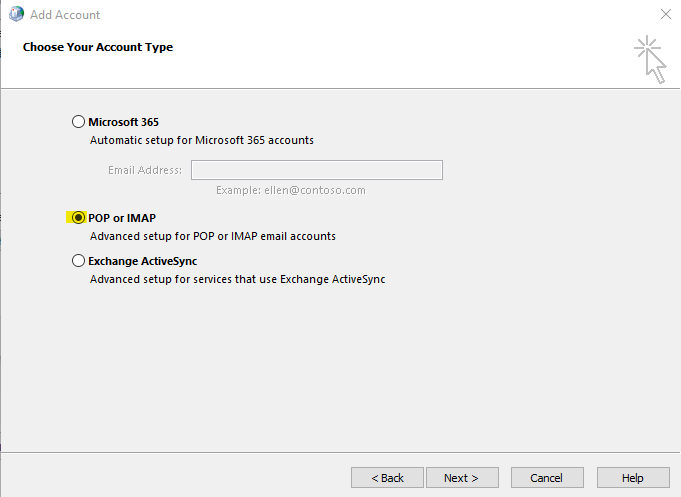
Choose POP or IMAP option and click Next
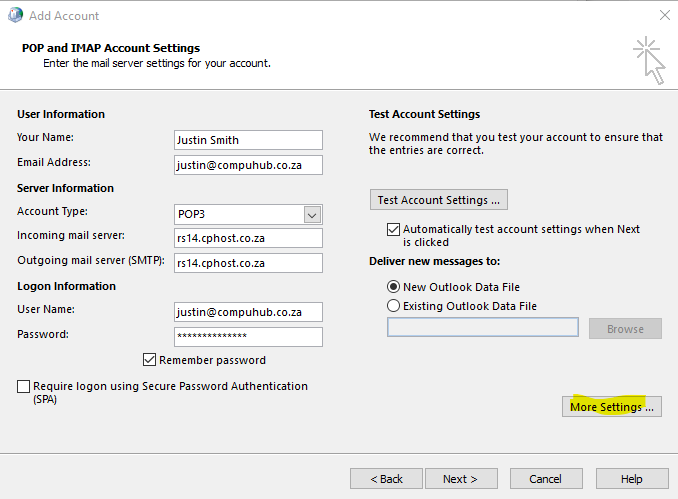
Enter your email settings as per screenshot below. These settings should be supplied by your email host provider. You should also be able to access them via your account cpanel or provider admin panel. Click More Settings button
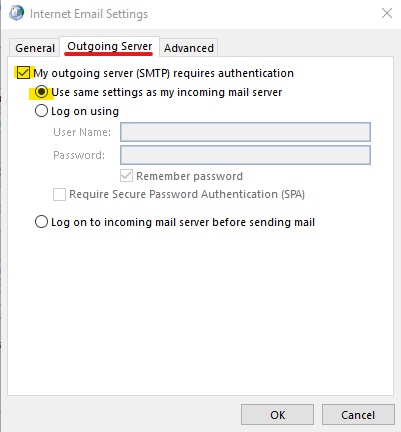
Select the Outgoing Server tab and select the options highlighted in screenshot below
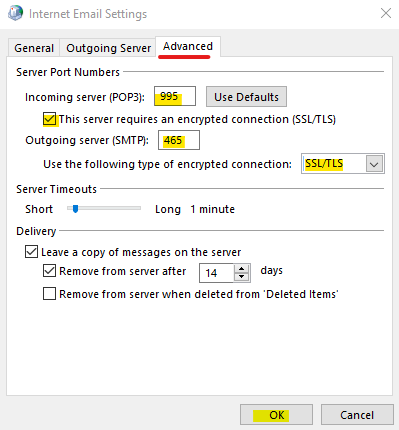
Click on Advanced tab and enter settings highlighted in screenshot below, click Ok button when done. Note, these are SSL settings and the port numbers may differ from your email service provider. It is recommended to use SSL settings to secure your email from attackers.
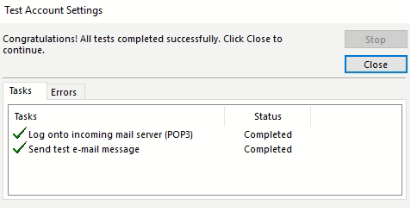
You can click Test Account Settings button to see if you can successfully connect to your mailbox. You should see the box below with the 2 green ticks if you can successfully connect to your mailbox. Click Close button
Then click Next at the bottom and Finish
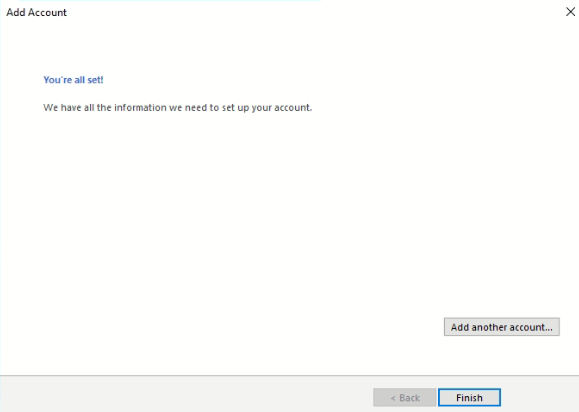
And thats it, you can close everything and open Microsoft Outlook and you will see the test emails.